How to Reconnect a Data Source in Data Studio
 Are you experiencing unexplained data errors in your Data Studio reports? The solution might be as simple as reconnecting your data source. This guide will walk you through the process of reconnecting a data source in Data Studio, helping you resolve issues and get your reports back on track.
Issue
Unexplained data errors in Data Studio reports.
- Data Destination Affected: Data Studio
Solution
Reconnect the data source from within Data Studio.
- Open your Data Studio report and click on the Edit button to enter edit mode.
- Click on the Resource menu at the top of the page and select Manage added data sources.
- Locate the data source that needs to be reconnected and click Edit next to the source.
- On the top left side of the page, click Edit Connection.
- Ensure you choose the correct Hub and Account from the available options. Then click Reconnect.
- If no field changes are detected: Click Continue to continue.
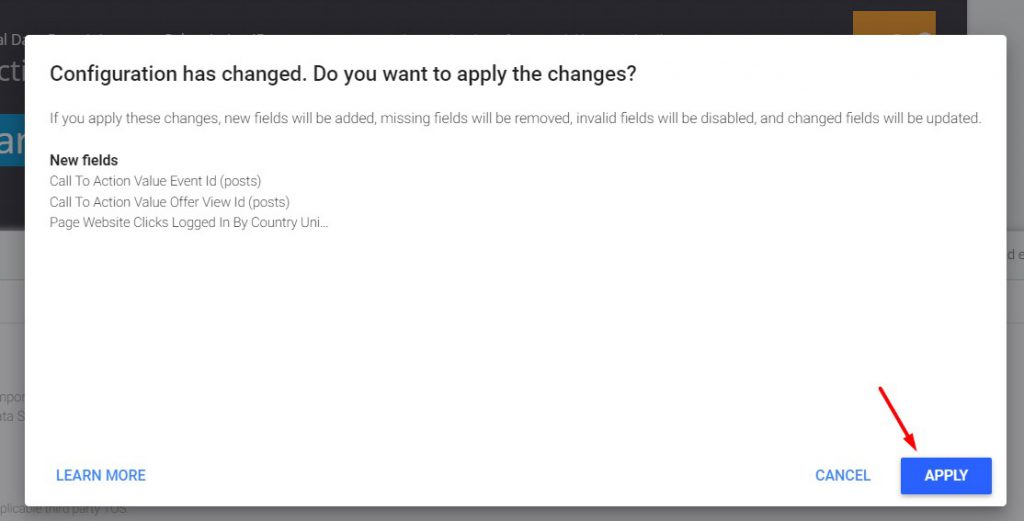
- If field changes are detected: Review the changes and click Apply to proceed.
- Click Done to apply the updates and complete the reconnection process.
